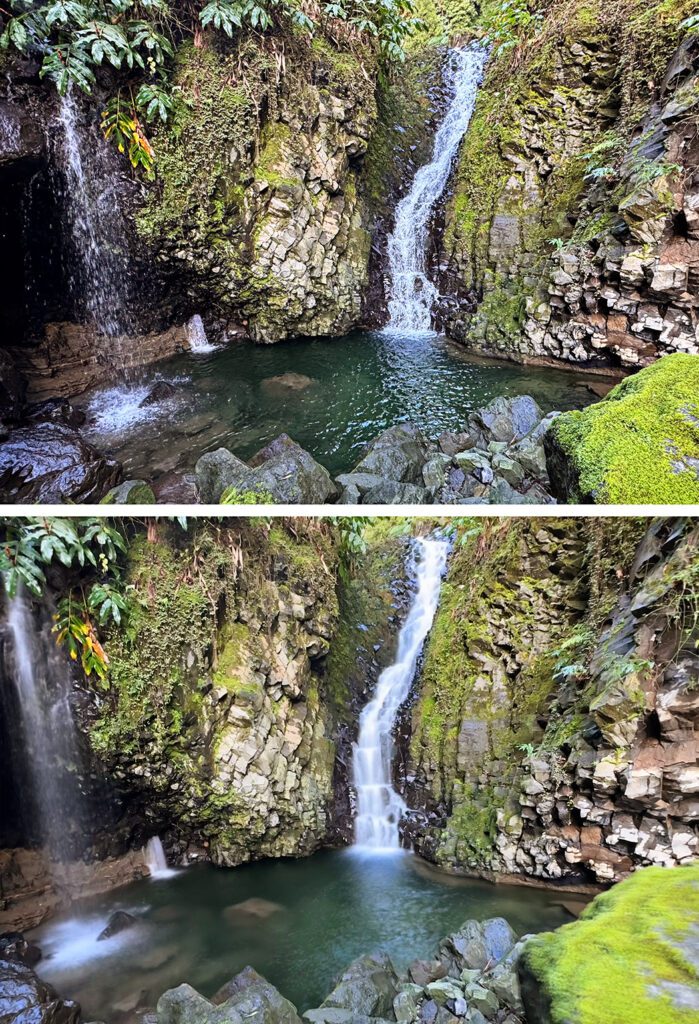
Did you know that you can take a photo of moving water – a waterfall, a fountain, or a stream – with your iPhone and then turn it into a dreamy, soft water image after the fact? It just takes a few extra steps and voila – instant soft water.
When I was learning to take photographs in the early 2000s I was using a film camera and Fuji Slide film and also a new (brand new to the market) Nikon Digital Camera (the D200!) to make magic. I would take trips and go on photo workshops to the Smoky Mountain National Park in TN (I was living in NC at the time), and there would be these amazing waterfalls that I wanted to capture. In order to get that soft, flowy, “angel hair” water effect, I had to have a secure tripod, mount the camera on the tripod, turn the shutter speed down to slooooooowwwww (1/2 a second or longer), turn the ISO down to looooowwww, and turn the f-stop to f22 – and hope there was no movement or shake in the camera when I hit the trigger. And while I was able to often captured the moving water, there were other issues – the rest of the scene was maybe too bright, or too dark, or the camera did indeed shake causing motion blur, or, in one memorable and costly moment, the moving water took the tripod over (and my brand new digital camera with it) into the stream, and that happened at the beginning of a week long workshop. Yikes.
In 2025, 25 years later (unbelievable), I still take a camera with me when I travel to far-off places, but I’ve ditched the tripod and pack as light as possible (I carry a Fuji XT5 now for travel). But in many cases, I use my phone to supplement because it’s easier, wider angle, and has some pretty cool effects like this upside down phone trick AND the soft water trick I mentioned above, which makes any waterfall look almost as good (in theory) as those from so long ago.
So how do you go from static to soft – three easy steps!
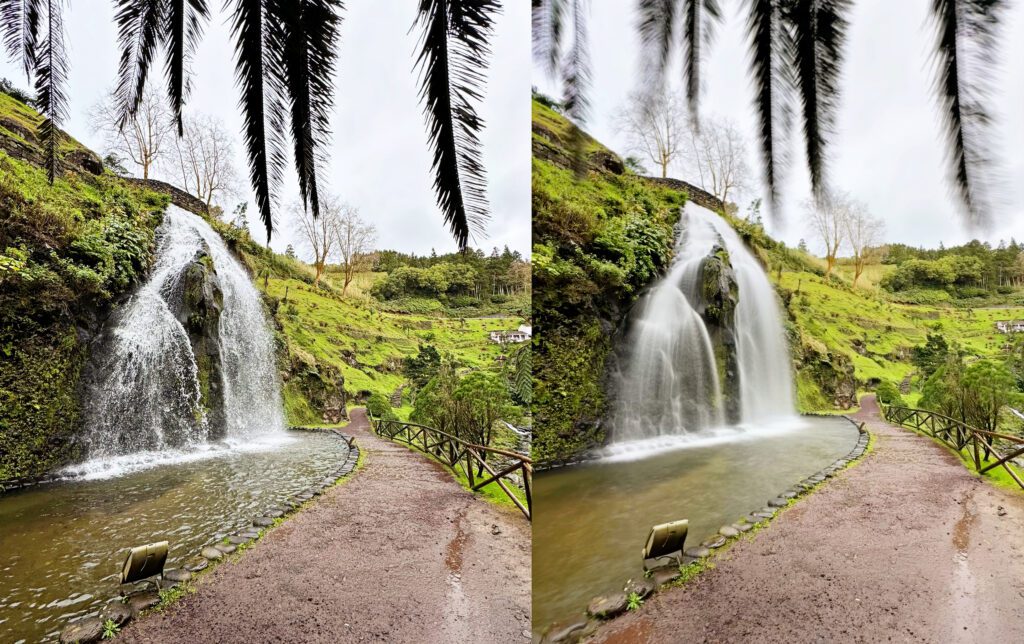
- Open your camera app on your iPhone, and in the top right corner, you’ll see a circle with a line through it for “live mode,” and the line through it means it’s off (yours may be on). Touch the circle and turn “live mode” on if it’s off. The line will disappear from the circle.
- Take a photo of the moving water.
- Go to your album of recent images, find the photo you just took, and from the top left of the photo, there is a grayed-out box that should say “LIVE,” meaning the photo is in live mode. Touch that box and select the option “long exposure,” and the photo will be transformed. It may crop the photo a bit in the adjustment.
- Here is a quick Loom Video showing the concept
I took both the above and below photos in the Azores in February 2025.